Wednesday, April 09, 2008

Debugging Visual Studio packages (stories from the crypt)

If you ever developed Visual Studio integration package, you should be familiar with load failure problem. The problem manifests itself when properly deployed package cannot be loaded with error message displayed.

I'd like to stress the deployed part of the above; when such problem occurs in the development environment, there are number of typical issues causing this such as invalid registry (missing CodeBase attribute etc.), invalid PLK key or missing dependencies (am assuming here that package with invalid PLK does not get distributed :). To diagnose such issues one can use Package Load Analyzer, distributed as part of Visual Studio SDK.

However, when the issue occurs at some other workstation where properly tested package is deployed, this option is not too useful (you cannot ask every user to install VS SDK, can you?). And believe it or not, these things happen even to the software that is rock solid in local test environment. So here is my take on figuring out why deployed package does not work:

  1. Ask the user to export registry branch with package registration information
  2. Ask the user to run Visual Studio with logging enabled (devenv /log [log file path]) and ship you the log; the log will tell you if you have PLK or similar problems – in a sense it is performing the same function as Package Load Analyzer only without fancy interface
  3. And finally, do tracing in your code! By "tracing" I mean trace every single dubious statement in package Initialize method (and every exception elsewhere however unlikely it might seem). Though better approach would be to utilize Visual Studio Output pane, sometimes the overhead is too big for unlikely scenarios. But however unlikely, if you put Trace statement in that location it can be crucial in diagnosing the problem. Mind, I advocate tracing over message boxes and other UI elements only for the problems that are deemed unlikely (that is never occur in testing, for example).
    Then if you have copious tracing embedded in your code, you can instruct the user to place diagnostics section as into devenv.exe.config file (located in IDE folder together with devenv.exe) and thus get the snapshot of what is going on in your package

This sequence can be pretty helpful in diagnosing problems in packages that otherwise are functioning properly in most environments. If you have alternative approaches, it would be interesting to learn them – leave a comment on the blog!

Thursday, April 03, 2008

Look and ye shall find. Or may be not.

Do you think that you could list the ways you employ to minimize the number of bugs in the software? It could have been an interesting exercise (similar to 5 facts about yourself nobody knows etc). Well, Patrick Smacchia of NDepend fame did it for you – here are seven (like in seven deadly sins :) typical ways to minimize number of bugs in the software.

I liked the post very much (and still do) but eventually I started thinking that I do not agree with some of the things said. So there – my take on those seven.

While I have no argument about Contract, Automatic Tests and Empirical Approach as effective ways of fighting bugs, other categories do not seem to me a bit questionable.

Prioritizing bugs fix over new features development is a good tactic when one can truly estimate the stability of the code. But frequent is the situation where the code is considered to be worth making more stable through bug fixing; but the stability of the code never actually increases. As the stability (increase) cannot always be estimated numerically, this technique to me seems to be giving a big name to somewhat arbitrary decisions of deciding what to maintain and what to leave alone.

Code quality that is supposed to be brought about through changes in programming styles such as LINQ is in the very least arguable. The argument VB is better than C++ since it is easier to understand comes to mind. Very good post on new trends that will revolutionize software development can be found here – I rather tend to subscribe to that view.

Finally, positioning Code Review and Static Code Analysis as tools for finding bugs misses the point. If we talk about doing code review (static code analysis can be thought of as automated code review process) in order to identify bad "smell" coming from certain piece of code (which FxCop does well) or coming from certain modules/design decisions (in which NDepend excels) that is a one thing; but to use code review (in any form) to find actual bugs always was pretty ineffective. While Patrick says so in his post, he still puts code review into his list. I wouldn't – I would rather call that code quality assessment using whatever tools are available (old-fashioned peer code review, static code analysis, Line Of Code counting whatever); and such an assessment would result in devoting more time to testing the questionable areas.

And what will be your take on bug fighting techniques – speaking theoretically?

Tuesday, April 01, 2008

Hear hear - VPC is here!

It is Fools' Day, but that is no joke –VS2008 Team System Trial VPC is released. It is full of goodies (nice touches include Office SP1 and Power Tools pre-installed) and it will expire in December (right, December) 2008. And if that is not enough, it has 38 labs with data inside.

If you do not have VPC and poo-poo it as a waste of bandwidth (well, yes, it is around 5 Gb compressed) I'd advise you think about getting one. VPC is invaluable for doing crazy things in TFS repository and verifying changes before going live. Get one and be wise!

Thursday, March 27, 2008

Influence next version of Visual Studio Team System

If you interested in influencing the next version of VSTS, the team publishes the specifications of the features under development for public feedback.
In February, the following specs were published:


  • TFS Bug Submission portal for TFS 2008 - contrary to current Web Access UI, new bug sumbmission Web UI will provide kind of access that will not require Client Access License; kind of "my work items only" management web interface (and mind you, that feature targets TFS 2008, so make sure to have a look!)

  • Send mail from TFS - the feature will implement mailing one or list of work items from VSTS

  • Linking Work Item tracking - the feature spec describes the future customizable link relationships to be supported in the next version of VSTS


The following specs were released a while ago:

  • Add to Source Control

  • History improvements

  • Improved labels dialog

  • Resolve conflicts improvements


By the way, you can view the historical list of specs for VS2008 aka Orcas here - just for inspiration :).

Sunday, March 16, 2008

Branching to desired target path is easy

One would expect that creating a branch is pretty well trodden path today; that's why it was kind of shock to me that there are still people out there, that do not know how to do that efficiently.

The problem is simple – you want to branch folder "$/Project/Ongoing" to "$/Project/Branches/1.1". And here is the wrong way of doing it:

  1. Invoke Branch dialog by right-clicking the selected path and selecting "Branch…" menu
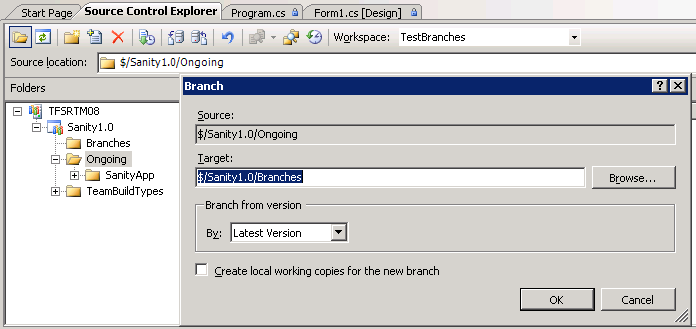
  2. Select the desired destination path for new branch in Target control
  3. Hit OK to perform branching


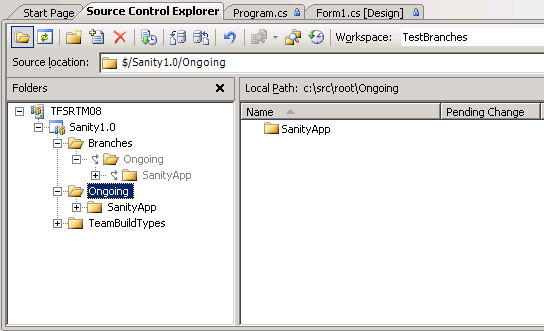
The problem is, you end up with new branch created at "$/Project/Branches/Ongoing" (as illustrated below).


And since what you actually wanted is not a branched folder named "Ongoing", but one named "1.1", you end up renaming newly created branch. Red light flashing - wrong answer!

Here is the correct walkthrough:

  1. Invoke Branch dialog by right-clicking the selected path and selecting "Branch…" menu
  2. Select the desired destination path for new branch in Target control
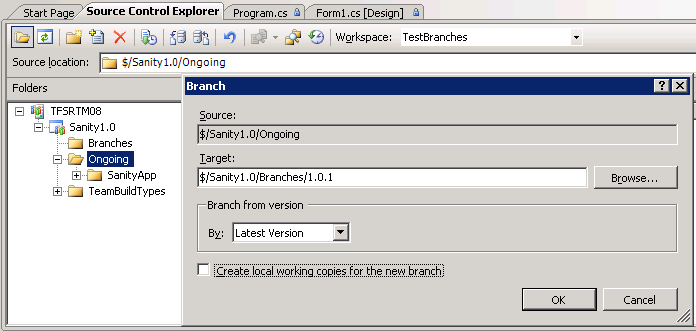
  3. Add desired name for the target branch folder to the specified path in Target ("$/Project/Branches/1.1")
  4. Hit OK to perform branching


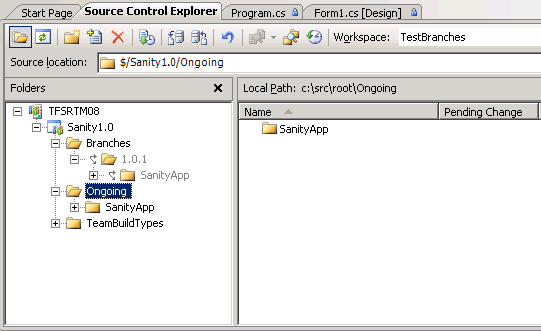
And voila! The desired branch folder is created


Since the behavior does not seem to be very intuitive to me (and to some people I know), I thought it is worth blogging about.

Friday, March 14, 2008

PowerShell and MSBuild get married

Do you use MSBuild much? Do you use (or plan to use) PowerShell? Then it might be a good time to spell out what kind of integration you expect between MSBuild and PowerShell – since Windows SDK team is asking for your comments for future versions of PowerShell.

And if you did not start on PowerShell yet – I'd recommend that post by John Robbins to get you started.

Thursday, March 13, 2008

What will the future bring?

Due to several reasons (most of them involving little kids of mine :), I have pretty large backlog of topics I would like to write about; but because of the same reasons, I can see that only part of this backlog will be handled in the reasonably near future.

So I thought I'd ask my readers (I am pretty sure there are couple of them out there), what would be of greater interest? My choices are

  1. Version control and work item tracking object model
  2. Work item types customization
  3. Static code analysis

If you feel strongly about any of these topics, please leave a comment. Thanks in advance!

Label scope revealed

One not very well-known feature of Team Foundation version control label, is the ability to scope the label by the project (or, generally, by any folder path). By scoping I mean the following – the label is identified not only by name, but also by so-called "scope", where scope is the actual path within which the label name is unique.

Thus if your label scope is "$/", that means that you essentially have one global label; when scope is "$/Project1", the label name is unique within Project1.

Using UI (Source Control Explorer) you cannot fine tune the scope; generally, when you label set of items the scope will be defined according to the following rules

  • If the items being labeled belong to the same Team project (say Project1), the scope will be "$/Project1"
  • If the items labeled belong to several Team projects (say Project1 and Project2), the scope will be "$/"

The scope of the label can be viewed through command line client (for example, for label SampleLabel, tf labels SampleLabel /format:detailed) or using version control object model (as is done in Labels Sidekick).

However, when one uses command line to label files certain complications may occur if the label is not specified. Let's say that you are creating cross project label (that is label that contains set of files from Project1 and Project2). Since the label contains two sets of files that should be done through two calls to tf label

> tf label SampleLabel $/Project1/Source/* /recursive /server:TFS1
Created label SampleLabel@$/Project1

> tf label SampleLabel $/Project2/Source/* /recursive /server:TFS1
Created label SampleLabel@$/Project2

As you can see from the output, instead of creating one label with two sets of files, two separate labels were created: those labels have the same name but different scope (symbol at @ is used by tf to display the label's scope – thus the scope of the first label is $/Project1 and of the second one $/Project2).

To create one label, the scope needs to be explicitly specified (using @ syntax):

> tf label SampleLabel@$/ $/Project1/Source/* /recursive /server:TFS1
Created label SampleLabel@$/

> tf label SampleLabel@$/ $/Project2/Source/* /recursive /server:TFS1
Updated label SampleLabel@$/

Specifying explicit scope (common for the two sets of files – in our case, root folder $/) achieves the initial goal.

In my opinion, the scenario above would be the most common usage for the scope. While not recommended, the scope may be used to create same name labels within the same project as well (for example, specifying SampleLabel@$/Project1/Source will limit uniqueness of the label name to the folder $/Project1/Source). I attach "Not recommended" to this practice because of the relative invisibility of the scope in the SCE; not all users will be aware of the command line or third party tools and several labels with the same name in UI may be confusing.

Monday, March 10, 2008

Simple yet not so simple - caching work items in Visual Studio

One of the areas with no potential for confusion, and yet where still some confusion occurs, is the caching of the work items opened in Visual Studio. For performance reasons, Work Item Tracking integration package caches work items the user opens, and that may lead to somewhat unexpected results.

Let's look the following scenario:

  • User A opens work item 1 at his workstation
  • User B opens same work item at his workstation, modifies it and commits the changes

At that stage, if user A does not refresh the work item (by closing and reopening it, or by using Edit->Refresh Work Item menu), the data in the work item is outdated, since Visual Studio integration does not support push model (where server pushes changes to the client), rather using pull model (client pulls changes when user requests for it).

Now, let us complicate the scenario a bit. It may not be so obvious, but if user A runs Team Query that returns work item 1 and views or opens it from the query results, he will have a cached work item data in his instance of Visual Studio. In that case, to update the work item user may re-run the query, or use Edit->Refresh Selected Work Item menu.

Overall, general rule is this: if you have work item opened in Visual Studio (either in separate window or as part of the query result), then you have cached data, and if somebody is updating your work items in parallel, you would be better off refreshing the work item before editing it. If you edited old revision of work item, on save you will be prompted to refresh your work item prior to making any changes (and, er, will lose your edits).

Thursday, March 06, 2008

Check out TFS Times March edition

Just a footnote - in March edition of TFS Times, check out two articles by yours truly: "Check in policies survey" and "Exploring Attrice Team Foundation Sidekicks". If you prefer a PDF version, download one from here.