Saturday, January 09, 2010

TFS2010: And the tools are there too!

In my previous post, I was talking about using making your custom tools ready for TFS 2010 with SDK. But what about other tools, say you? And not to worry, here you go (and I included not only TFS but VS tools as well):

Enjoy!

Mirror from my MSDN blog

Monday, December 01, 2008

Case of never ending unit tests

Couple of days ago I came across very weird issue on my new box – unit tests that were started (either from within Visual Studio or using MSTest command-line) would never complete. Test run would just hang pending forever.

Since I was running latest and greatest VS2008 with SP1, I have started blaming permissions first, and then new Windows bugs (since I was running Windows 7 build), and that did not help (does it ever?).

As it turned out, the problem was my computer name. It was all lower case (upper case does not exhibit the problem), and somehow that prevented unit tests run from ever completing (even without any TFS stuff – just plain unit tests). The workaround is to change the computer name (either using Computer->Properties, or by tweaking the registry if you cannot do it [for example, when computer is joined to a domain]). The steps are described in this helpful MSDN post.

Thanks for the workaround go to Ed Hintz.

Tuesday, November 18, 2008

StyleCop November news

Just a couple of interesting and very useful articles related to StyleCop.

First, Jason Allor writes about how to gradually integrate StyleCop into legacy projects. The biggest problem with StyleCop (and FxCop for that matter) when you start enforcing rules on legacy projects, is what to do about all legacy code that is not compliant. Well, for StyleCop there is an easy way out (since it operates on source code files) - it is possible to edit C# project file and so all legacy files are ignored during the analysis.

Another interesting project from Howard van Rooijen is integration of StyleCop with ReSharper. Not only it displays StyleCop warnings the same way it does ReSharper warnings, it also provides automated correction options. I am not a big fan of automatic fixes for static code analysis issues (since there should be some thinking involved in most cases), but with StyleCop kind of warnings this is very useful. Not many people fancy removing spaces or changing indentation manually – unless you get paid by the hour that is :)

Monday, October 27, 2008

Visual Studio Team System 2010 CTP available!

For the benefit of those, who missed the huge announcements in the blogs and are not at the PDC, among other great things unveiled CTP of Visual Studio 2010 is available!

To get maximum fun out of CTP, here are several links

Now, few additional helpful notes

  • Make sure that you have undo disks set up (by the way, works fine for me with Virtual Server as well), so when you mess up something in the CTP, or hit maximum trial uses limit for office you can easily rollback
  • Note, that Hyper-V is not officially supported with CTP image release. Though some people are known to successfully set it up, it ain’t that easy
  • When looking at CTP, to get maximally friendly expirience  make sure you follow the walk-throughs. Current CTP is not in the state, where you can go anywhere and do anything

And don’t forget to let guys at MS know, what you think! There is whole set of forums dedicated for the purpose.

Friday, September 19, 2008

TODO or not TODO

Any person doing software development is often faced with the same problem: you come across some code that was developed as a quick’n’dirty answer to the project timetable (for speed reasons), or some code that works in convoluted way but could not be changed (for legacy reasons). What are your choices? One choice – you have time, skills and mandate from the management to fix the problems, revamp the architecture, refactor the code whenever you feel like doing it; so you just resolve the problem there and then. Another choice – you do not have time, do not own the code, have higher priority items etc., so you just put “TODO: Fix later” comment for later resolution.

After a (surprisingly long) while, I came to the conclusion that this traditional way of handling code problems is sadly inadequate. Seeing TODO comment in the middle of debugging session is pretty familiar sight; and there is a high chance that this very TODO is responsible for the problem you are looking for. But it is there already – so what is the problem? Short answer is that TODOs are rarely done; it is almost as if it is NEVER TODO.

And the problem is inherent in the TODO comment technique itself – code comments serve for code description, not for task tracking. And once you identified that something needs to be changed – that “something” becomes a task that should have priority, should be assigned to somebody, possible resolutions should be analyzed etc. All of which cannot be done in a code comment. And code comments do not have high visibility; if anything comment is always less visible in IDE that code; most IDEs provide extensive code navigation but hardly any comment navigation (As an anecdote on TODOs visibility, in an effort to improve it, I tried alternative technique of refactoring problem method/class names by adding telltale suffix in a belief that developers would be averse to using PerformCalculationCrap method or CustomListenerCrap class. I should tell you, having repulsive name did not affect the bad code proliferation at all :).

Thus one obvious solution is to create a task entity instead of in-place comment (if you use Team Foundation Server, that task readily maps to work item with all data formatting and reporting capabilities available there); create this entity separately from the code and ideally have it linked to the code in question. While the approach is easily the best one, it will not work well for everyone: certain overhead is involved (both with creation and maintenance of task artifacts; and at the very least it requires some task tracking system) that is not always justifiable; for example, you may still wish to mark the code for later review tomorrow morning without moving away from code here and now (after all, creating task artifact will necessitate context switch).

So nowadays I try not to use any TODO comments even in the absence of task tracking system; some alternative approaches (for Visual Studio 2005/2008) are summarized below. While not the replacement of tracking code issues in task tracking systems (and to say even more – design/architecture issues always MUST be tracked elsewhere), I believe in general these approaches work better than code comments, since they provide a) better visibility (visible in compilation log) and b) easy navigation (possible to navigate between issues) and c) require intentional action to suppress (you do not need to suppress comments at all).

And yes, I am aware that I am stretching the “intended usage” paradigm in most scenarios; all I can say is make the decisions depending on your specific scenario.

Alternative TODOs in C++

In C++ (both managed and unmanaged), the easiest way I have found is to use deprecated pragma directive. Given the method name as the parameter, the pragma will generate preprocessor warning for the method. Not so easy to ignore and easy to navigate to:
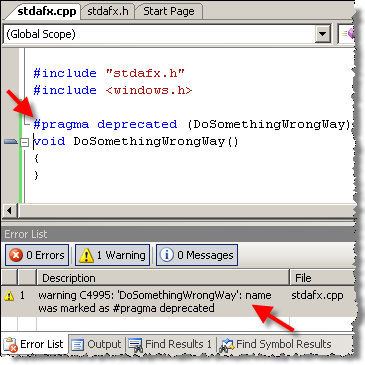
In theory, this pragma ought to be used to identify deprecated functions; however, in the projects I was a part of I have never seen it used for the declared purpose and thus it could be used as TODO indicator on methods. Of course, if on your project this pragma is used for its intended purpose, you won’t be able to use it. In such case, one may use less elegant approach; for example, the one below

#ifdef BACKLOG
   #error DoSomethingWrongWay is quick and dirty
#endif
void DoSomethingWrongWay(){ ... }

Once you define BACKLOG on your project, you can easily review and navigate the TODOs. While less elegant, in this manner you can mark any line of code (whereas using deprecated you can only label whole methods).

Alternative TODOs in C#

For C# there are two alternatives that I used in lieu of TODO comments.

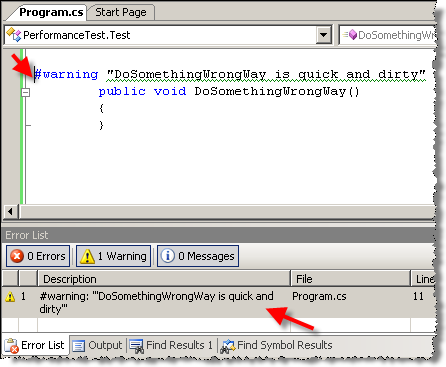
First approach is to use #warning pragma. This way you can mark any line of code and then easily navigate between your TODOs.

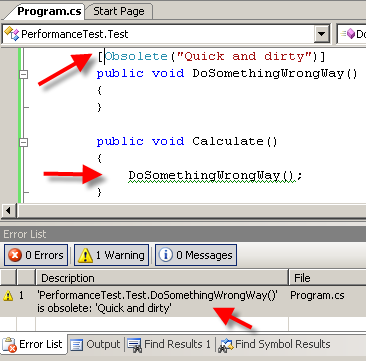
Another way is to use Obsolete attribute (much like the usage of deprecated pragma in C++ discussed above); when attributed member is used, warning gets generated. However, since the attribute is widely used for its intended purpose, I try not to deviate from this intended usage, so it is more of the “caveat” rather than TODO comment. For example, if there is some crazy method that cannot be changed right away for legacy reasons, it can be labeled Obsolete so no one will be using it in the future (since using it will generate new warning right away).
Using traditional TODOs efficiently

If you are still not convinced, and prefer to use TODO comments in your code, there are still ways to use them in a more efficient manner in Visual Studio.

Just open “Task List” tool window, select “Comments” in the “Categories” combo box – and voila! You will immediately see all TODO comments in one list so you can easily navigate between them [by the way, the comments shown in the task list are not limited to TODO; one can define any comments to be shown there by changing settings in “Tools”->”Options”, “Environment”->”Task List”].
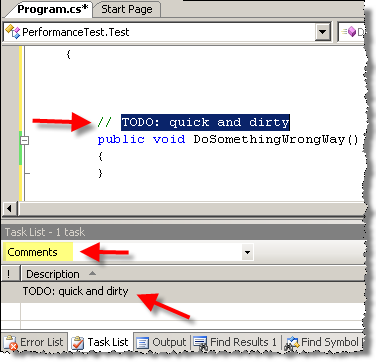

This feature would be even more useful if all files in currently open solution/project would be scanned. Currently only open files are scanned, which means search through files would still be a better method to iterate over all TODO comments in project.


After writing this post, I thought I’d do quick search on the subject; while I was not able to see what’s the prevalent opinion, I found an interesting blog post from Ben Pryor that argues similar point of view.


And by the way, TODO comments are not specific to any development methodology. I’d assume that is more of general phenomenon.


Have a strong opinion about the subject? Leave a comment!

Sunday, August 24, 2008

Editing files in VS2008 SP1

As a follow up to a previous post on file handling in VS2005/VS2008, I thought it is worth to mention another big difference coming as part of VS2008 SP1.

Pre-SP1, if you edit a source controlled file that is not a part of currently loaded solution, VS will not prompt you to check out this file (and will not check it out automatically, if that is what you configuration settings).

However, if you work with files in Source Control Explorer in SP1, your experience will be pretty much identical to Solution Explorer experience, even if the file is not part of the current solution. That is, editing file will check it out the file (if that is your VS settings – Source Control Explorer behavior is defined by the same set of settings as Solution Explorer; namely, “Tools->Options->Source Control->Environment” tab).

Together with the change mentioned in my previous post, this small tune-up should significantly decrease the number of local changes that never made it up to the repository (that is, if you are tweaking files locally and modify them out of solution context).

Monday, August 18, 2008

Editing writable files in VS2008

One interesting change of TFS source control provider behavior in Visual Studio 2008 is the handling of writable files.

In VS2005, if you make certain source controlled file writable locally, editing it will not cause check out (you will have to explicitly check the file out); of course that assumes that VS is set either to explicitly or automatically check out file on edit or save.

With the same VS settings in VS2008, you will still be prompted to check out the file, even if it is writable. TFS source control provider tracks all controlled files in the solution, regardless of their read-only status.

The rational behind this change is clear – changing files locally without referencing source control repository may lead to changes never propagating to repository at all (and thus problems of “I have changed the file and it was not checked in” kind may arise).

However, there are some interesting problems you might encounter with that new behavior. Let’s say certain file is locked by someone else (with exclusive check-out lock). In VS2005 you would make this file writable locally, and VS would be happy to let you edit the file. In VS2008, however, VS will first check the status of the file in source control, and seeing that it is locked won’t allow you to edit this file.

There is workaround to this (aside from not ever messing up with local files modifications :); “Tools->Options->Source Control->Environment” tab in Visual Studio may be used to tweak the options. Setting checked-in items “Editing” behavior to “Do nothing” will allow you to edit file regardless of its status in source control (setting “Saving” behavior to “Save As” will allow you to save it). But keep in mind that this setting is probably very unproductive choice for day-to-day work.

Thanks for this tip go to Richard Berg.

Thursday, April 24, 2008

Sharing files between VS projects

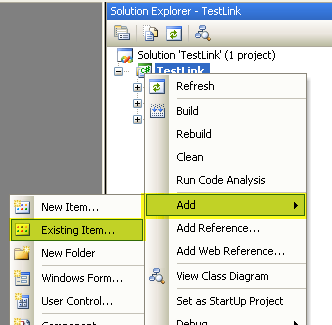
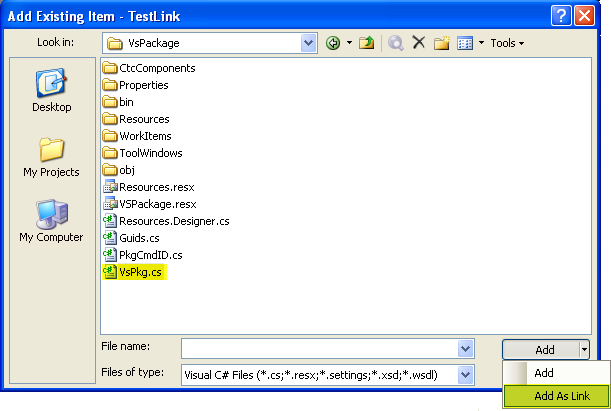
One of the interesting features available in Visual Studio managed projects (VS2005 and VS2008) that I keep forgetting about is the ability to add same file to several projects as "link" rather as physical copy. To add existing file to the project as a link you just need to select "Add->Existing Item" and then use well-hidden "Add As Link" add option in the dialog:


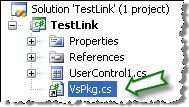
The file added as link then will have special icon in solution explorer. And if the file linked is under source control, it will not be added to repository again; the icon will show the status of original file.

What is this feature good for? Several examples:

  1. You have class library project where some class have internal methods, and you want to use those methods (for example, for testing). Then you can create additional project and link the files from the class library into it – and voila! you can use internal logic and do that in separate project
  2. Share certain file between several projects. You might wonder what file is a good candidate for that kind of sharing; well, how about AssemblyInfo.cs file? That way you can easily make sure that all related assemblies have the same version
  3. One interesting usage scenario was mentioned on MSDN forums: it is not a secret that when you build managed project it generates lots of junk in the project folder (obj and bin folders come to mind). While you can redirect output, it turns out getting rid of this obj folder is quite involved. But suppose you stored your source files elsewhere and would just link them into the project being built? That way you can make maintain clear separation between source code and build plumbing (which is the main purpose of C#/VB project)

I am not advocating the wide usage of the links instead of good ol' files; but that's a neat alternative to be aware of.

Wednesday, April 09, 2008

Debugging Visual Studio packages (stories from the crypt)

If you ever developed Visual Studio integration package, you should be familiar with load failure problem. The problem manifests itself when properly deployed package cannot be loaded with error message displayed.

I'd like to stress the deployed part of the above; when such problem occurs in the development environment, there are number of typical issues causing this such as invalid registry (missing CodeBase attribute etc.), invalid PLK key or missing dependencies (am assuming here that package with invalid PLK does not get distributed :). To diagnose such issues one can use Package Load Analyzer, distributed as part of Visual Studio SDK.

However, when the issue occurs at some other workstation where properly tested package is deployed, this option is not too useful (you cannot ask every user to install VS SDK, can you?). And believe it or not, these things happen even to the software that is rock solid in local test environment. So here is my take on figuring out why deployed package does not work:

  1. Ask the user to export registry branch with package registration information
  2. Ask the user to run Visual Studio with logging enabled (devenv /log [log file path]) and ship you the log; the log will tell you if you have PLK or similar problems – in a sense it is performing the same function as Package Load Analyzer only without fancy interface
  3. And finally, do tracing in your code! By "tracing" I mean trace every single dubious statement in package Initialize method (and every exception elsewhere however unlikely it might seem). Though better approach would be to utilize Visual Studio Output pane, sometimes the overhead is too big for unlikely scenarios. But however unlikely, if you put Trace statement in that location it can be crucial in diagnosing the problem. Mind, I advocate tracing over message boxes and other UI elements only for the problems that are deemed unlikely (that is never occur in testing, for example).
    Then if you have copious tracing embedded in your code, you can instruct the user to place diagnostics section as into devenv.exe.config file (located in IDE folder together with devenv.exe) and thus get the snapshot of what is going on in your package

This sequence can be pretty helpful in diagnosing problems in packages that otherwise are functioning properly in most environments. If you have alternative approaches, it would be interesting to learn them – leave a comment on the blog!

Monday, March 10, 2008

Simple yet not so simple - caching work items in Visual Studio

One of the areas with no potential for confusion, and yet where still some confusion occurs, is the caching of the work items opened in Visual Studio. For performance reasons, Work Item Tracking integration package caches work items the user opens, and that may lead to somewhat unexpected results.

Let's look the following scenario:

  • User A opens work item 1 at his workstation
  • User B opens same work item at his workstation, modifies it and commits the changes

At that stage, if user A does not refresh the work item (by closing and reopening it, or by using Edit->Refresh Work Item menu), the data in the work item is outdated, since Visual Studio integration does not support push model (where server pushes changes to the client), rather using pull model (client pulls changes when user requests for it).

Now, let us complicate the scenario a bit. It may not be so obvious, but if user A runs Team Query that returns work item 1 and views or opens it from the query results, he will have a cached work item data in his instance of Visual Studio. In that case, to update the work item user may re-run the query, or use Edit->Refresh Selected Work Item menu.

Overall, general rule is this: if you have work item opened in Visual Studio (either in separate window or as part of the query result), then you have cached data, and if somebody is updating your work items in parallel, you would be better off refreshing the work item before editing it. If you edited old revision of work item, on save you will be prompted to refresh your work item prior to making any changes (and, er, will lose your edits).