Monday, July 28, 2008

Permissions best practices

As I happen to write quite a lot about permissions lately, I thought I’d round it off with yet another post.

All permissions available in TFS (I do not take SharePoint or Reporting Services) fall in four categories

  • Server global permissions
  • Project global permissions
  • Source control permissions
  • Areas permissions

Certain principles apply to all categories, viz.

  1. Try to assign all permissions to TFS groups. That is, use TFS groups (server- or project-level) as containers to one or more Windows (AD domain or local) groups. That way the dependence on IT department is minimal, and it is easy to change the group membership while retaining overall permission structure
  2. Minimize permission assignments to users; try to use groups as much as possible. Only situations that are justified (in my opinion) are server/project administrators groups assignments. All other case should be groups. In this manner, you can maintain permissions on higher level (without figuring out how certain user is different from the rest)
  3. Use Deny sparingly, since if the user is not admin and you deny access in one of his groups, it will not be easy to find which one
  4. Allow some time for permission assignment to get synchronized to the TFS database. Frequently, the users will want the permission to become effective there and then. But TFS has certain latency in updating the effective permissions, and if you plan permissions changes in advance you will avoid lots of time and prevent users frustration. 

And now I would like to touch some version control specific permission issues (since this is by far most complicated topic, not in the least because inheritance is allowed in version control)

  1. Set as few permissions as possible. Ideally, you would set permissions on server, project and immediate project subfolders at most (and set server/project permissions by assignment to appropriate pre-defined groups). That way you will be able to immediately know where to look for the “root” of any permission problem.
  2. Never set permission on files (that can be viewed as more of the same topic as in previous paragraph, but I cannot say that enough).
  3. Use inheritance as much as possible; start with most permissive set-up and partition by using Deny.
  4. If you find yourself setting certain permissions more than once, script them using tf permissions (use tfssecurity for global and area permissions). In this way potential for human error is minimized.

And to conclude, I would highly recommend not just set permissions ad hoc as you go along, but create some permission model (I know it sounds big, but Excel table that clearly delineates the common groups and permissions set may well be sufficient). If you are not sure – start with default groups and permissions, and assign your users appropriately to default groups. Believe me, that would be way better than creating complex permissions soup that your users swim in (and hate you all the while – and they will let you know their feelings). 

By the way, you might want to watch Sidekicks blog for the soon-to-happen new release announcement (that will include Permission Sidekick). Stay tuned!

Related posts
When permission inheritance is a godsend
When permission inheritance is evil
Deny or allow – who wins? A sequel
Deny or allow – who wins?

Work Item Customization tidbits: Special Fields (part 8 of X)

Before you consider customizing work items, you probably should be aware of existence of the “special” fields, that behave differently from the custom ones you define. In most cases you will have to use the special fields in your custom type, so to understand peculiarities of the behavior is pretty important.

Most of those fields are defined in System.XXX refname space (I will omit the namespace specifier for all System fields below); let me enumerate them and detail their behavior.

Read-only fields are always available for all work items, and yet you do not have to do anything to define them. The fields are:

  • Id – work item unique (within TFS server) identifier
  • TeamProject – work item Team project name
  • WorkItemType – work item type name
  • CreatedBy – user who created WI 
  • CreatedDate – datetime of WI creation

Calculated fields relate to work item links (set in LinksControl  and AttachementsControl in UI). The names are self-descriptive:

  • AttachedFileCount – number of files attached to WI
  • HyperLinkCount – number of links (URLs) in WI
  • ExternalLinkCount – number of links (version control artifacts) in WI
  • RelatedLinkCount – number of links (to other WIs) in WI

Auto-updated read-only fields are different from read-only fields as they are updated every time work item is changed:

  • ChangedBy – user who last changed the work item
  • ChangedDate – datetime of the last change
  • Rev – current revision of work item

And now, very special fields – so special that they represent a category onto themselves.

AreaPath/IterationPath fields – represent WI area/iteration. Those tree values are represented as tree in UI and can be displayed only in WorkItemClassification control. Not all behaviors are applicable to those fields (for example, they cannot be made mandatory)
And most importantly, those fields are basis for WI grouping and security model, and as such are provided separate dedicated UI. In that UI one is able to view or modify areas/iterations as well as assign permissions to them. By allowing WORK_ITEM_WRITE/WORK_ITEM_READ, it is possible to control whether certain groups of users may edit/view work items (and whatever WI appear in the WIQL reports).

State field has its values and behavior defined in dedicated WORKFLOW section.

Reason field is also defined in WORKFLOW section and its values are dependent upon state. It becomes enabled only on state change, and its behavior cannot be changed.

History field cannot be modified or used in any way except for display in WorkItemLogControl; no other behaviors are supported (by the way, similar display controls – LinksControl for WI links, and AttachmentsControl for WI files attachments – do not even have associated fields, only UI controls)

And finally, there are not so special but yet very important System fields that are recommended for use in every work item – Title (for work item title), Description (for WI textual description) and AssignedTo (for user assigned to specific WI).

Additionally, I would like to mention fields defined in different Microsoft.VSTS.XXX namespaces, that you should consider using when customizing your work items. For those fields, you do not get extra behaviors as for some of System.XXX fields, but out-of-the-box templates can be used as a good example of usage for those common fields and provide an easy start for customization. I will list several most interesting fields:

Microsoft.VSTS.Common fields

  • StateChangeDate – date of the last state change
  • Rank – work item priority (numeric)
  • ActivatedBy/Date – date the work item becomes active (and who activated it)
  • ClosedBy/Date – date the work item becomes inactive (who deactivated it)

Microsoft.VSTS.Scheduling fields

  • StartDate – date of WI (task) start
  • FinishDate – date of WI (finish

Microsoft.VSTS.Build fields

  • FoundIn – build the WI discovered in
  • IntegrationBuild – build the WI was first integrated in

FoundIn and IntegrationBuild fields provide most interesting automated behavior connected with builds. When you perform a first build in Team Project, global list with the name “Builds - [Team Project name]” is created by TFS and is associated with the fields in all work item types in the project (using SUGGESTEDVALUES behavior). The mechanism uses TFS eventing model (see the detailed post by Jason Prickett). After the list is created, each subsequent build is added to that global list and in such way available for selection in work items.

Related posts:
- Work Item Customization: fields maintenance (part 7)
- Work Item Customization: global lists (part 6)
- Work Item Customization: system fields (part 5)
- Work Item Customization: user interface (part 4)
- Work Item Customization: state transitions (part 3)
- Work Item Customization: conditional field behavior (part 2)
- Work Item Customization: fields definition (part 1)

Thursday, July 24, 2008

When (permission) inheritance is a godsend

In a previous post I talked about some issues you might encounter when transitioning from inherited to explicit permissions in TFS source control.

However, if you do not wish to completely disable permissions inheritance, there are some nice surprises in TFS permission management for you.

Let’s consider the same folder structure as in previous post

$/Project
   Source
       Common
       Proprietary

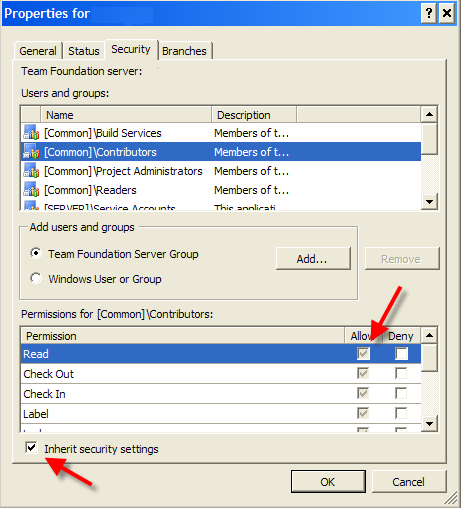
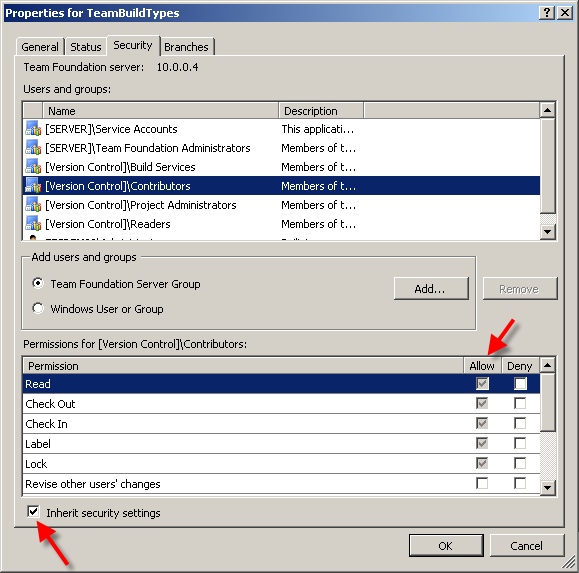
The settings for group “Contributors” on Proprietary folder are inherited from the project, and include “Check In” set to Allow.

Suppose we want to deny the “Check Out” permissions on that folder for “Contributors”, but unlike the scenario previously discussed, that is the only thing we want to change. The rest of the inherited settings should be retained. To do that you need to do three steps:

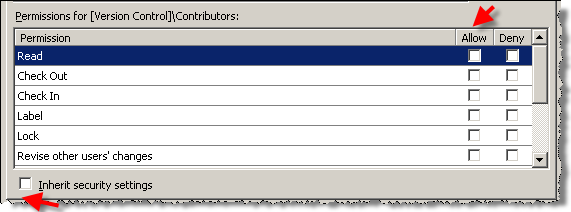
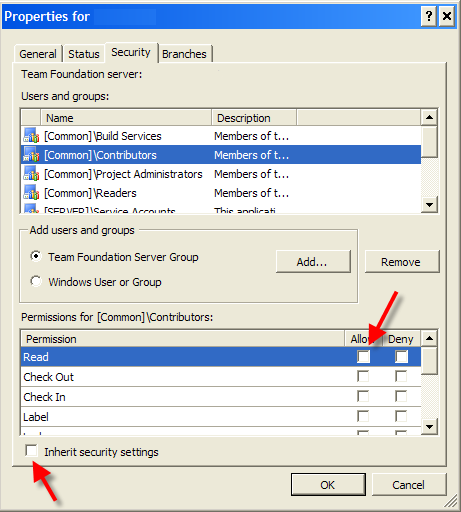
1. Uncheck “Inherit security settings” checkbox (note how all permissions are unset)

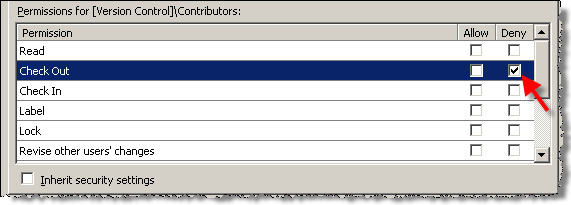
2. Deny check out for “Contributors”

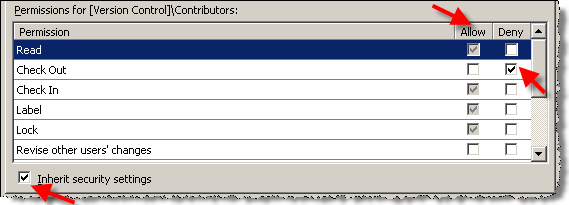
3. And lastly one step that is not obvious at all – check “Inherit security settings” checkbox again

Voila! Now you have all permissions inherited from the parent folder intact, but one specific permission denied.

It is worth noting, that you cannot explicitly allow permissions, denied in the parent folder (since explicit Deny on parent will override any permissions set to Allow).

Now that you have read this post, you have officially joined the secret sect of TFS permissions administrators :).

Sunday, July 20, 2008

StyleCop confusion cleared

As Brian Harry and Jason Allor blog about how easy series of misunderstandings may give birth to conspiration theories, I thought I’d drive some of the points they raise home and talk about what’s common and what’s different between FxCop (and Team System Static Code Analysis at that) and StyleCop.

  1. FxCop runs on .NET binaries (thus your code must pass compilation) and does not require source code; StyleCop runs solely on C# source files. Thus while FxCop essentially works for any .NET assembly, StyleCop is limited to C# source files (and essentially, this files may not even compile)
  2. Team System Static Code Analysis is integrated into Visual Studio project properties, has standard check-in policy and analysis results can be published to TFS data warehouse and as such are reportable. StyleCop is out-of-band tool with limited integration to Visual Studio (very similar to FxCop stand-alone executable)
  3. FxCop supports analysis suppression attributes (on element or module level); StyleCop does not.
  4. Team System Static Code Analysis product is actively developed as part of next version of Visual Studio (“Rosario”); StyleCop most probably will always be unsupported tool with limited dedicated development
  5. And finally, the biggest difference – while StyleCop verifies source code and documentation formatting for C#, FxCop (and Team System Static Code Analysis) is the tool checking the binaries for conformance to design and development guidelines [while FxCop includes Naming rules, it is just part of its rules inventory].

The only thing one can expect from StyleCop analysis is more maintainable code (since source code becomes more uniform and compliant to coding standards). From using FxCop analysis one may expect actual improvement of the code by elimination of design/development flaws as well as making code compliant to common naming conventions.

The overlap between two tools is minimal – here is the table of StyleCop rules that also exist in FxCop:

Rule ID Rule Name
SA1401 FieldsMustBePrivate
SA1300 ElementMustBeginWithUpperCaseLetter
SA1301 ElementMustBeginWithUpperCaseLetter
SA1302 InterfaceNamesMustBeginWithI
SA1303 ConstFieldNamesMustBeginWithUpperCaseLetter
SA1304 NonPrivateReadOnlyFieldsMustBeginWithUpperCaseLetter
SA1305 FieldNamesMustNotUseHungarianNotation
SA1306 FieldNamesMustBeginWithLowerCaseLetter
SA1307 AccessibleFieldsMustBeginWithUpperCaseLetter
SA1308 VariableNamesMustNotBePrefixed
SA1309 FieldNameMustNotBeginWithUnderscore
SA1310 FieldNamesMustNotContainUnderscore

Only other rules that are code-related rather than formatting-related are the following rules:

Rule ID Rule Name
SA1404 CodeAnalysisSuppressionMustHaveJustification
SA1405 DebugAssertMustProvideMessageText
SA1406 DebugFailMustProvideMessageText

The rest of StyleCop rules deal with C# source code formatting or code comments.

To conclude, FxCop is more about telling you how you ought to do things, while StyleCop is all about how you should format the source code for the things, no matter what is in that source code.

Myself (while I like arguing about code formatting) FxCop is unquestionably has more value. How about you? Does your “mileage” vary?

Friday, July 18, 2008

Deny or Allow – who wins? A sequel

In a previous post, I have explored the details of effective permission evaluation in TFS.

As a supplement for this post (and generally as a reference for everyone managing TFS permissions), I highly recommend a recent “TFS Roles and Security” reference poster from Willy-Peter Schaub, Team System MVP from SA. The poster details available permissions, default TFS server and projects groups and their assigned permissions and how effective permissions are determined.

And while we are at the topic, check out additional reference posters available from Willy-Peter. These posters are different from boring bunch of tables that you might expect from your previous experiences; take a look for yourself how information presented in graphical way becomes more accessible. For example, compare “Roles and Security” poster with MSDN article providing essentially same information.

Wednesday, July 16, 2008

Work Item Customization: fields maintenance (part 7 of X)

When discussing work item type fields definitions, I have intentionally left out the maintenance aspects (to simplify things). Now let us handle some of the complexity related to field definitions.

It is important to understand that all fields defined per work item type are actually defined per Team Foundation server. Defining field in work item may be likened to adding new record to fields’ “global table” (containing name, refname and type columns) with all work item types using that global table. Thus when field is renamed (using witfields rename utility), its name changes for all work item types using that field

Moreover, when you add field to your work item type, and some work item type has already used the same refname, you cannot override either data type or field name. And the following additional constraints apply:

  • When field is removed from specific work item type, it does not cease to exist on server (even if it is not used by any work item type); to remove field it needs to be explicitly deleted
  • When field is being deleted (using witfields delete), it should be first removed from all work item types
  • When the field deleted was used for reporting (reportable attribute set), then you will have to rebuild data warehouse to purge old field and its values

Just imagine that you have created custom work item type and it uses certain field (CR_ID, integer, reportable), then used it in twenty Team projects. If now you need to change field CR_ID type from integer to string, that will involve the following:

  • Remove field from WI type definition in all twenty projects
  • Delete field from WIT database
  • Rebuild data warehouse
  • Add field to WI type definition in twenty project

Did I bring my point home – the point being field maintenance (add/delete and to a degree rename) is expensive? The morale of the story is that if you are going to add new field and especially if you desire to delete field, “measure twice, cut once”. Sometimes it may be better to leave unused field (that is not currently used by any WI type) hanging in there rather than going for deletion spree.

Monday, July 14, 2008

When (permission) inheritance is evil

One of the areas of Team Foundation Server that I constantly wish would become better is management of permissions inheritance. To illustrate, let’s assume that you have the following structure:

$/Project
   Source
       Common
       Proprietary

Now, let’s say that you have “Check In” permissions (and bunch of other permissions) set to Allow on Project level for group “Contributors”. Since by default inheritance is enabled, the same permissions apply to all subfolders.

But now you need to disable “Check In” and “Check Out”  for "Contributors" on Proprietary folder; and you do not want to Deny the permissions (since if the user belongs to other authorized group he still may modify the files). Thus you want to disable the inheritance altogether and unset Check In/Check Out, while retaining the rest of permissions.

So you right-click on Properties in Source Control Explorer, un-check "Inherit Security Settings" checkbox, previously disabled (since the permissions were inherited) authorization settings checkboxes become enabled (as expected) and ... simultaneously cleared. What? How am I supposed to remember all previously set checkboxes? [If you think it is innocent, remember that un-checking Security Settings checkbox will clear settings for all groups!]  

So what is the solution of this usability problem? I hate to tell you, but I do not have one real good solution. The one I have been using is to become close friends with tf permission command-line client. Once you become friends, make sure that you script reusable permissions sets as a batch file. While not perfect this approach may still help you to retain your sanity on a bad day.

Update: the above applies only to situations where you disable inheritance completely.

Sunday, July 13, 2008

Knowing what to rant about

When I vented my feelings on Jeff Atwood’s naive view of commercial software development, I did not have any statistical data. For example, in his post Jeff talked about how MS Test sucks vs. NUnit and how nobody is using it.

And now, thanks to the poll that Roy Osherove did, there are some data at least to argue that claim. In his original post, he asked what what unit test framework people use, what mocking framework and what threading objects are most frequently used.

Now that the votes are all counted, everyone can see that MS Test beats everything but NUnit and was used by 27% of those responded (NUnit was 47%). Of course, you can discard the poll as not representative enough, but Roy's readers are pretty advanced bunch.

The data in the poll surely undermines Jeff’s claim that “Everybody I know who has tried to use the MSTest flavor of unit tests has eventually thrown up their arms and gone back to NUnit”. I have used both NUnit and MSTest, and while the latter may lack some features for advanced users, in general it is very decent framework with decent integration into Visual Studio.

What I really wanted to say is that it pays to experience things first-hand; if you evaluate something, do not be swayed by popular opinion without evaluating software and do make your very own opinion.

And another data in Roy’s poll (somewhat unrelated to the topic of the post) is the relative usage of threading primitives. Who could have thought that in year 2008 the close second is Thread.Sleep? Underlines the importance of code reviews, that :)

Wednesday, July 09, 2008

What TFS SDK samples do you need?

If by any chance you read my blog and do not read Brian Harry’s blog (probably it is other way around), make sure you download and preview new TFS extensibility sample and provide him feedback what is missing from this sample and what samples you would like to have in general. The sample is hot from the oven, and expands on the details from classic Ed Hintz post.

Personally, I’d be interested to know how many people would like to extend Team Explorer and what extensibility scenarios you are looking to implement in general.

Monday, July 07, 2008

Deny or allow - who wins?

If you ever tried using permissions in TFS, you know that there are four kinds of permission settings that can be set for the user or group(Explicit/Implicit Allow and Explicit/Implicit Deny). Specific effective permission is defined as combination of permission settings set for user and all groups the user belongs to; the settings are combined according to the following order of precedence (from more potent to less potent setting)

  • Implicit Allow is defined when user is a member of Team Foundation Administrators group or [Project]/Project Administrators group
  • Explicit Deny is defined when Deny is explicitly set for user/group
  • Explicit Allow is defined when Allow is explicitly set for user/group
  • Implicit Deny (None) is in effect when no setting is specified

Two most important rules out of four (that are frequently forgotten and lead to “unexplained” effective permissions) are “Implicit Allow” (if the user is in admin group, the effective permissions are “everything is allowed” no matter what) and “Explicit Deny” (if Deny is set somewhere and user is not an admin, you better find that somewhere; no amount of additional “Allow” set will help).

Let’s illustrate the above with the example. Assume that there are four groups defined: Team Foundation Administrators, Contractors, Developers and Testers; and the permission settings for “Read” permission on $/Project folder are defined as following:

Group Allow Deny
Team Foundation Administrators    
Contractors   Set
Developers Set  
Testers    

In the example below, the users effective Read access will depend on the combined group membership (as an exercise, the last column is made invisible – select it to see the answer):

User name Team Foundation
Administrators
Contractors Developers Testers Can read?
User 1 X       Yes
User 2   X X   No
User 3 X X     Yes
User 4     X X Yes
User 5   X   X No
User 6       X No

Since current version of TFS does not provide effective permission indication in UI, the exercise above is something you will have to perform now and again.

This piece of wisdom (together with lots of additional pieces) can be found on MSDN; if you are planning permissions rollout or find yourself in a tight place staring at permissions set and not understanding why the things do not work as desired this is where you go.

Thanks to Brian Randell and Sam Heald for this post idea.