Wednesday, August 12, 2009

New check-in policy for VSS fans: keywords expanded

One of the much-talked-about missing features of TFS is the keyword expansion feature. You know, the ability to place the template in the beginning of every single file and then have every revision tracked in the body of the file (in addition to tracking in source control history, that is).

Personally, I am not a huge fan of the feature – mostly because the usefulness of the feature limited by the following factors

  1. The comments to check in still have to be detailed (if the comments are crappy, you get a lot of garbage in the file that adds nothing)
  2. If the file gets branched a lot, the revision history tend to get muddy and not to reflect the branching history very adequately
  3. If the code churn is great, you might get 100 lines of code adorned with 400 lines of revisions history (yes, I actually seen this)

So I am of the opinion that all of the above is the function of source control and if your source control is not good enough for tracking history of changes – that ain’t good source control :) However, for some folks ability to have history of changes contained in the same file outweighs the disadvantages. And these folks were pretty vocal, so vocal that Buck Hodges stopped one stop short of writing actual solution and provided the verbal recipe for writing one, using check-in policy as a workaround (since keywords expansion is not making it into official product).

And voila! Two years after this post was published, there appears TFS keyword expansion checkin policy, written by Jochen Kalmbach. Jochen also published the policy on CodePlex site, under the name of LogSubstPol.

I did a short test drive of the policy, and it does work as advertised, in three simple steps:

  1. Install the policy (currently using batch script)
  2. Add the policy to your Team project and configure the format of the keywords string
  3. Add  keyword ($log$ etc.) monikers to the file modified prior to check in

Once all of that done (and steps 1 & 2 are once per project, step 3 once per file step), as you check in you will see the revision history being updated and checked in as part of the file.

While the policy is awesome, there are few things to be aware of.

  • As the policy requires you to supply the comment, it effectively replaces “Changeset Comments Policy”, so if you have it defined for Team project you might want to remove it
  • Configuration dialog for the policy is somewhat complex, so read the documentation first (supplied PDF is real good)
  • If you evaluate the policy but decide not to check in, due to limitations of the checkin policy mechanism the keywords in the file will get expanded anyway
  • As the files are updated by the policy, VS will display the message “The file has been modified outside of the source editor” (as policy touches it right before check in). That again may be limitation of the checkin policy mechanism for keyword expansion (but perhaps can be mitigated with some creative VSX tweaking)

But regardless of these small thingies, the policy is mighty useful and it fills the big gap for those accustomed to keyword expansion. Big kudos to Jochen for creating the policy!

Mirror from MSDN blog

Sunday, December 21, 2008

Holiday release of branching guide for TFS

In case you missed the full announcement (at Jeff Beehler’s blog), I’d put a line about it too.

New version of TFS Branching Guide is released at CodePlex! In addition to what Jeff already blogged about,  three highlights of this version are (in my opinion):

  • It provides new content (especially in main and scenario sections) based on real-world TFS implementations
  • It breaks the content into easily consumable parts (my favorite are Q&A and scenarios), thus opening the way for more updates in the future
  • There is change of the direction in v2 for how to handle community involvement. V2 document is purported to be a “live” document – that is community is welcome to contribute into this document (this is part of the reason why it is released in several distinct sub-documents). The way to contribute or influence the document is to use CodePlex infrastructure and file work item for it (make sure to specify the section of the document)

Also at this note, I would like to wish everybody Merry Xmas, Happy New Year, Festivus and happy holidays at large! See you in 2009!

Monday, October 06, 2008

MSBuild Extension Pack is released!

MSBuild Extension Pack is the library of over 170 MSBuild tasks including

  • System Items: Certificates, COM+, Console, Date and Time, Drives, Environment Variables, Event Logs, Files and Folders, GAC, Network, Performance Counters, Registry, Services, Sound
  • Code: Assemblies, CAB Files, Code Signing, File Detokenisation, GUID’s, Mathematics, Strings, Threads, Zip
  • Applications: BizTalk 2006, Email, IIS7, MSBuild, SourceSafe, StyleCop, Team Foundation Server, Visual Basic 6, WMI

The library is authored by Mike Fourie, who has been very active in custom MSBuild tasks area for the last few years. And I mean active – he was the person who single-handedly maintained well-known SDC tasks library for the last year.

You might wonder – what is so different about this new project? Several points of note:

  • Extensive documentation – every task has example and a usage sample
  • Uniform implementation (since all tasks are implemented off the same base classes)
  • Remote execution support (where applicable)
  • Novel concept of TaskAction, that provides several related functions in the same task (f. e. <Folder TaskAction=”Remove”> would remove a folder as compared with <Folder TaskAction=”Rename”> renaming folder)
  • Last but not least, this project will probably have very high level of support. While MSBuild Extension Pack is stable (since it is based on several beta released of FreeToDev tasks), you still might need someone to communicate with – and judging by the awesome work Mike did with SDC tasks one might expect that the new project will be maintained well.

And if you have something to contribute, the project is at CodePlex which means that the contributors are welcome.

Monday, September 29, 2008

Attack of the clones (C# version)

How much do you know about the clones (apart from Star Wars stuff)? Chances are, if you ever participated in team effort developing software, you came across duplicate code, in most cases resulting from Copy/Paste magick. The best solution for finding duplicates in code is still manual code review – trusty efficient but time-consuming method. But one frequently wishes for an automated tool for that – and that’s where Clone Detective comes in. This is very interesting free tool that become available at CodePlex about a month ago and it purports to assist developers in identifying duplicate code in C# projects.

What is so exciting about this specific tool? Is that a first tool of its kind? Well, there are clone detection tools on the market; most are Java-oriented but some would work for more than one language. However, the tools I have tried were a) pretty clunky to operate, b) not integrated with IDE and c) cost money based on weird licenses (based on LOC processed etc.). Clone Detective on the other hand is a) easy to run, b) reasonably well integrated into VS and c) free. Thus it is very tempting to try!

How does the tool work? Clone Detective is essentially Visual Studio 2008 (no VS2005 support) integration front-end for ConQAT engine - COntinous Quality Assesment Toolkit, academic project by University of Munich. So when you run analysis of your code, Clone Detective will invoke ConQAT engine with the files, and will know how to process and present results in a meaningful way.

As many other academic projects, ConQAT engine is written in Java, which means you must have JRE installed (and JRE version must be higher than 1.5). Make sure you install JRE prior to Clone Detective, otherwise you will have to change the path to Java in tool settings (through “Tools->Options->Clone Detective” menu). This is an interesting twist – installing Java to analyze C# code, but remembering that the tool is free helps overcome the doubts at that stage :) 

Once Clone Detective package is installed, you will have three additional tool windows available through “View->Other Windows” menu in your VS 2008 IDE: “Clone Explorer”, “Clone Intersections” and “Clone Analysis” tool windows.

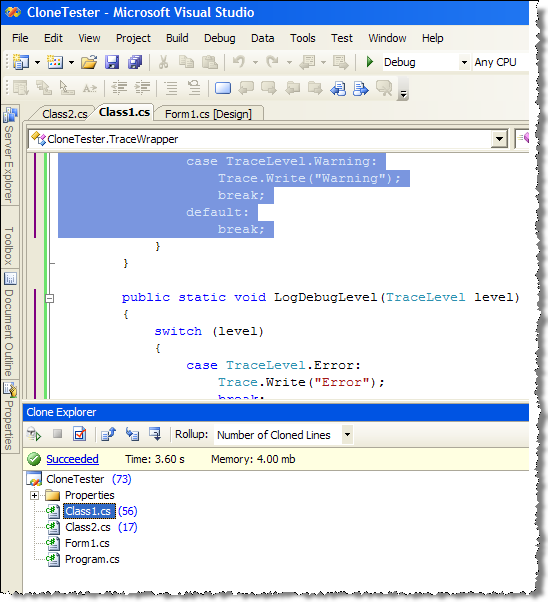
“Clone Explorer” tool window is the main entry point that you will use to run the analysis and review the high-level results of it. The results will consist of list of the files in the solution folder (separated into physical folders), where for each file there is indication of clones found; "Rollup" combo box allows selection of different metrics such as "Clone Percentage", "Number of Cloned Lines" etc.

Double-clicking the file will open it in IDE with the clones detected highlighted with different color on the left margin of document window.

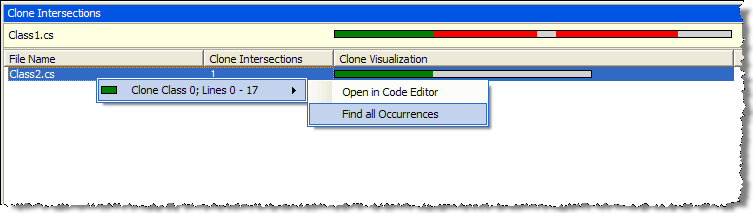
However, for better navigation one would use “Clone Intersection“ window, available by right-clicking on the specific file. This window displays cumulative color map for the clones in specific file on the top, and list of other files that contain clones from the selected file. Using color legend, one may view the distribution of clones within the file/across different files.

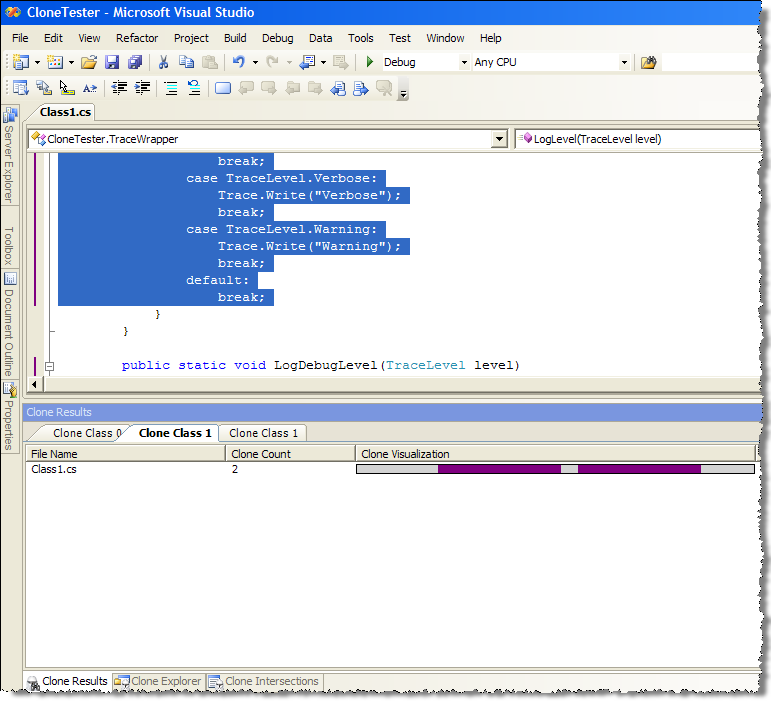
To drill down to specific clone, right-click on the color bar (either one on top or one on the right of the file), and select "Find all occurrences" - that will bring you “Clone Results” tool window to facilitate review of specific clone (double-clicking on the file will bring up IDE window with the focus on the clone and color coding on margin identifying the range of duplicated code).

Here is duplicated code found within the same file:

And here is the code duplicated across two files:

In a nutshell, that's the featureset of the tool (I did not mention the configuration, accessible from “Clone Explorer” window, which seems to hint on advanced fine-tuning options available).

One additional important point to be aware of is that the tool runs analysis on all files in the solution folder and all sub-folders and it does not require the files to be compiled; thus you may end up analyzing lots of files you did not want to. But perhaps that can be mended through settings.

To get some feel for how well the tool works I run some ad-hoc tests with Clone Detective, and here are my findings:

  1. On a basic C# project that I wrote for the purpose of testing, it did very good job identifying all clones that I have created "for the purpose", both in the same file and across two files
  2. On a real-life project (single assembly of ~ 20K LOC) with obviously bad code with high level of duplicity (due to no OOD principles applied and extensive copy-paste) the tool has identified the problems that were identified from code review. However, the tool was very useful to identify the scope of duplications across the solution, thus providing viable alternative to tedious manual code review. Did not see any false positives.
  3. On another real-life solution containing five assemblies (~35K LOC) it did considerably worse - run time was around 2 minutes, and it has mistakenly discovered 120K clones in one file of 2K LOC (file contained some static arrays initialization code). Some of other duplicates found were false positives (similar code but not duplicate functionality).

So in terms of success rate, I am still undecided and need to use it more to get certain benchmarks. But for a free tool it was easy to use and delivered on declared functionality (with some caveats).

On the problem side, it appears that running the tool on a large number of files may result in a huge amount of data to analyze; and the number of perceived clones may affect the analysis productivity. Thus integrating it into VS project build to be used throughout the development (a-la code analysis) and continuous build integration flow may be features to consider for the future.

Overall, Clone Detective may be well recommended for the test drive; I believe that it may be useful as part of the code review and overall development process.